How to Crop Video for Instagram Reels, TikTok and YouTube Shorts
You have a great horizontal video — shot landscape on your phone or camera. Now you need it in vertical for Reels, TikTok, or Shorts. Scaling it down adds black bars on the sides. Stretching it distorts the image. The right approach is cropping: removing the left and right edges and keeping the center (or any region you choose) to fill a 9:16 frame.
All processing happens locally in your browser. Your video files never leave your device.
Aspect Ratios for Social Media Platforms
Every platform has a preferred aspect ratio — the ratio of width to height. Getting this right determines whether your video fills the screen natively, gets letterboxed, or gets auto-cropped by the platform itself (often cutting off the most important part of your shot).
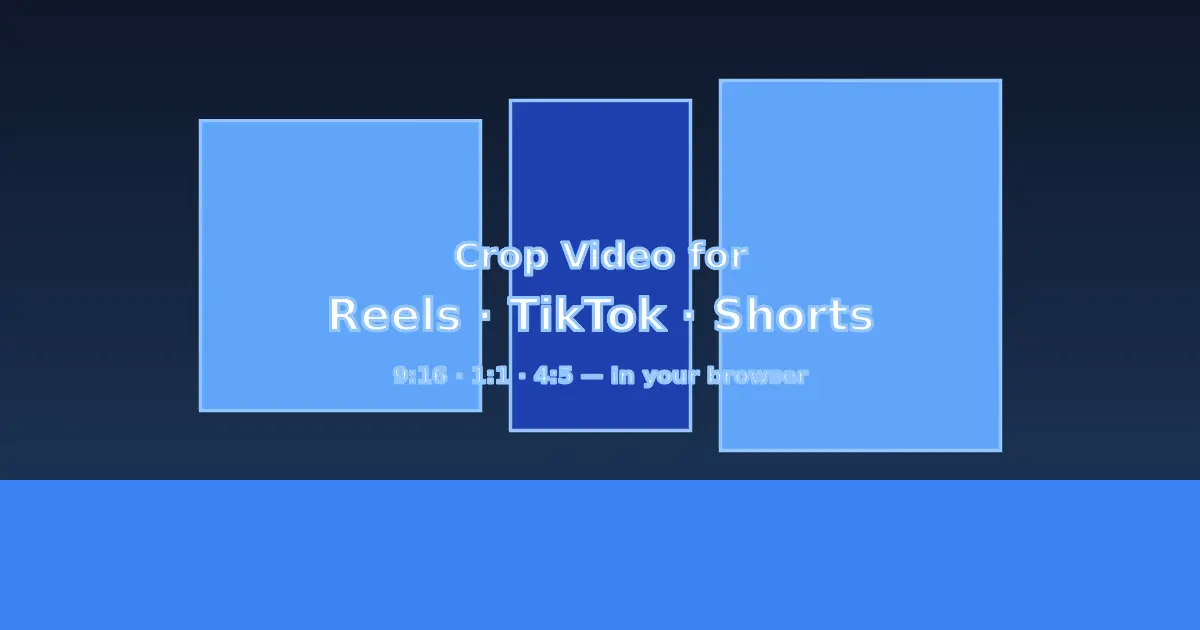
9:16 (Vertical) is the standard for short-form video. Instagram Reels, TikTok, and YouTube Shorts all default to this ratio. A 9:16 crop from a 16:9 video uses roughly 56% of the original frame width — you lose the edges, but the subject stays sharp at full resolution.
1:1 (Square) is used for Instagram feed posts. Less common now that vertical video dominates the feed algorithm, but still useful when repurposing landscape content for a feed-first strategy.
4:5 (Portrait) fits Instagram feed portrait posts. Slightly wider than 9:16, it gives more vertical space than square while still fitting the feed layout without going fully vertical.
If you are targeting all three major short-form platforms with a single export, 9:16 is the right choice. It fills the screen on Reels, TikTok, and Shorts without any additional adjustment.
Crop vs Resize vs Letterbox
Understanding the difference prevents common mistakes that degrade your video before it even reaches the platform.
Crop removes pixels outside the desired frame. The output can match the platform's full native resolution (1080×1920) because you are keeping a portion of the original frame at its original quality. No distortion, no bars — but you lose the edges of the shot.
Resize (also called "scale to fit" or "stretch") changes the dimensions of the entire frame. If your video is 1920×1080 and you resize it to 1080×1920, the image is stretched vertically and distorted. This is almost never the right approach for aspect ratio changes.
Letterbox (or pillarbox for vertical) adds black bars to fill the empty space when you change aspect ratio without cropping or stretching. A 16:9 video placed in a 9:16 frame will have tall black bars on the left and right. The original content is preserved — but the bars waste screen space and typically perform worse in feed algorithms that favor native vertical video.
Which to choose:
- Talking-head or subject-in-center footage: crop to 9:16. Center-crop keeps the subject in frame.
- Wide landscape with important detail at the edges: consider letterbox if cropping removes critical elements.
- Animated content or titles designed for 16:9: reframe manually with a custom crop position.
Center-crop works for most talking-head content. If your subject is off-center, use a custom crop position to keep them in frame before processing.
How to Crop to 9:16 in Your Browser
- 1Open the Crop Video Tool
Go to the Crop Video tool from the homepage or the tools menu. No account or sign-up is required.
- 2Upload Your Video
Drag and drop your video file into the upload area, or click to browse. MP4, MOV, MKV, WebM, and most common formats are supported.
- 3Select 9:16 and Position the Crop
Choose the 9:16 aspect ratio preset. A crop overlay appears on the preview — drag it to center on your subject. The preview updates in real time so you can verify the framing before processing.
- 4Crop and Download
Click Crop. FFmpeg.wasm processes everything in your browser — no upload, no server queue. When processing finishes, download your vertical video file.
Platform Requirements at a Glance
Each platform has slightly different technical limits. Here is what to expect when uploading cropped vertical video in 2026:
| Platform | Aspect Ratio | Max Resolution | Max Duration | Recommended Codec | Max File Size |
|---|---|---|---|---|---|
| Instagram Reels | 9:16 | 1080 × 1920 | 90 seconds | H.264 MP4 | 4 GB |
| TikTok | 9:16 | 1080 × 1920 | 10 minutes | H.264 MP4 | ~288 MB |
| YouTube Shorts | 9:16 | 1080 × 1920 | 3 minutes | H.264 / VP9 MP4 | No limit |
| Instagram Feed (portrait) | 4:5 | 1080 × 1350 | 60 minutes | H.264 MP4 | 4 GB |
| Instagram Feed (square) | 1:1 | 1080 × 1080 | 60 minutes | H.264 MP4 | 4 GB |
Platform specifications change. Always verify limits on the platform's official creator help page before a major campaign. The values above reflect specifications as of early 2026.
All three short-form platforms accept standard H.264 MP4 files. If your source video is in another format (MOV, MKV, WebM), the Crop Video tool outputs to MP4 by default — ready to upload without an additional conversion step.
Privacy and Offline Processing
Traditional online crop tools require uploading your file to a remote server. Your video travels over the internet to a machine you do not control, gets processed there, and is sent back. This raises concerns for unannounced content, private footage, or simply large files where upload time adds friction.
Local Media Tools runs FFmpeg compiled to WebAssembly, executing entirely inside your browser tab:
- You select your video — it loads into browser memory only.
- FFmpeg.wasm performs the crop operation on your device.
- The output file is saved directly to your Downloads folder.
No video data leaves your machine at any point. There are no file size limits imposed by server bandwidth or storage costs — if your device has enough RAM to hold the file, the tool can process it. The tool also works offline after the initial page load.
FAQ
Does cropping reduce video quality?
Cropping requires re-encoding because the output frame dimensions change. However, Local Media Tools uses high-quality encoding settings — the perceptual quality of the kept region is preserved. What you lose is the pixels outside the crop boundary, not the quality of the pixels you keep.
What is the difference between crop and digital zoom?
Crop and digital zoom are effectively the same operation — both enlarge a region of the frame to fill the output. The difference is in intent: crop removes unwanted edges to change the aspect ratio, while zoom is used to close in on a subject. Both are processed identically by FFmpeg.
Can I crop to a custom size instead of a preset?
Yes. In addition to presets (9:16, 1:1, 4:5, 16:9), you can enter custom pixel dimensions for the crop region. Useful when a platform requires a non-standard resolution or when you want to match an exact pixel count.
What if my subject is at the edge of the frame?
Use the crop position overlay to move the crop window before processing. You are not limited to center-crop — position the overlay anywhere in the preview frame to keep your subject in shot.
Does the tool support 4K video?
Yes, within the limits of your device's available RAM. 4K files are larger and take longer to process, but all processing still happens locally on your device with no file size restriction from the tool itself.